
Why Your iPhone Saves Photos as HEIC and What You Can Do With Them
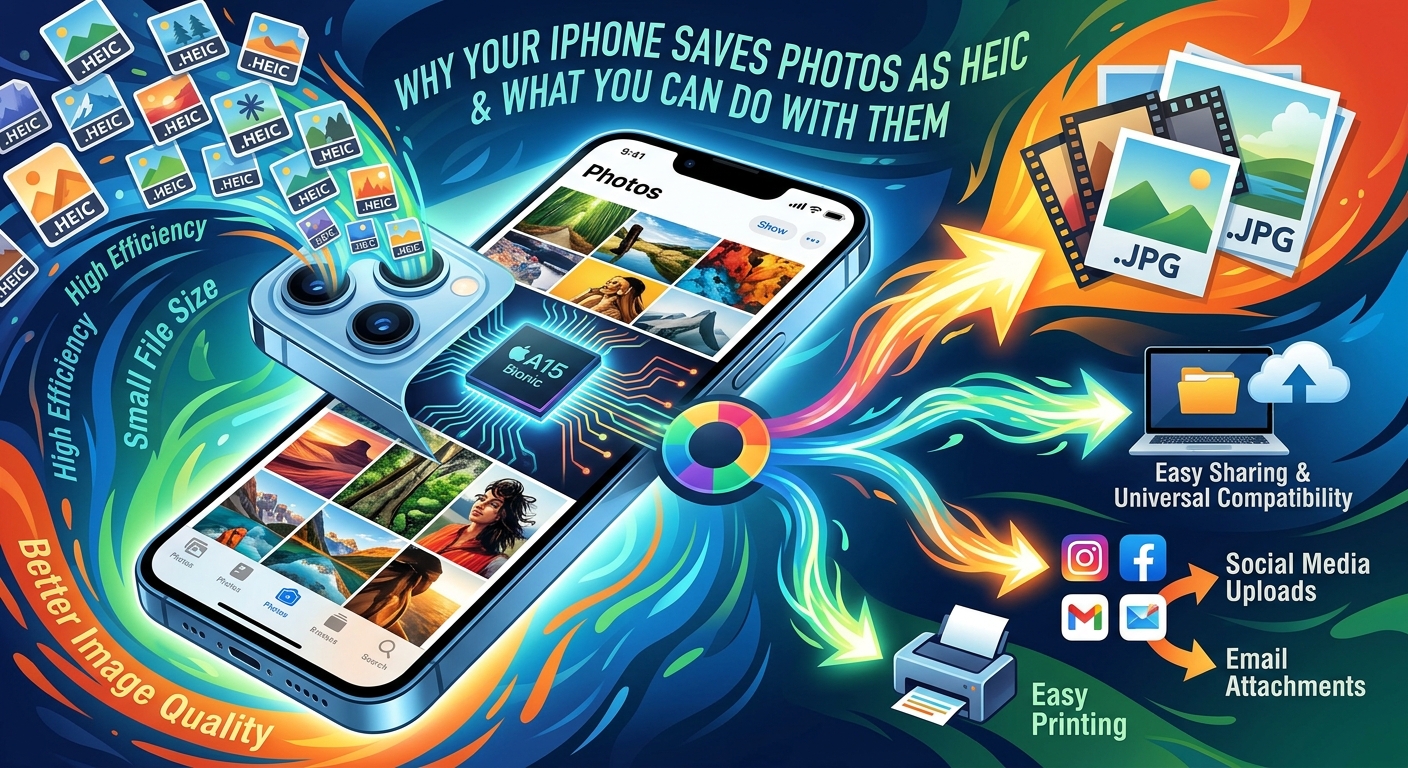
iPhone storage fills up faster than most people expect. One moment you have plenty of space, and the next you are staring at a "Storage Almost Full" warning right before you want to take a photo. Apple saw this problem coming long before you did, and that is partly why, starting with iOS 11 in 2017, every new iPhone photo began saving as HEIC instead of the familiar JPG. It was a smart technical move. It was also the start of a compatibility headache that millions of people still bump into today.
- Apple made HEIC the default photo format starting with iOS 11 in September 2017.
- HEIC files are roughly half the size of equivalent JPG files at the same visual quality.
- Most Windows PCs, Android phones, and online upload forms do not support HEIC natively.
- Converting to JPG before sharing is the most reliable fix for compatibility issues.
- You can switch your iPhone camera to shoot in JPG from the Settings app at any time.
The Format Change That Arrived with iOS 11
Apple released iOS 11 in September 2017. Alongside the usual updates, it brought a quiet but significant change: the iPhone's default camera format switched from JPG to HEIC. Most people never noticed. Photos looked identical in the camera roll. Sharing through iMessage worked without a hitch. The problems only appeared when photos left the Apple ecosystem.
HEIC stands for High Efficiency Image Container. It holds photos encoded using the HEIF standard, short for High Efficiency Image Format. The format was developed by the Moving Picture Experts Group, the same team behind MP3 and MP4. Their published HEIF format specification places it under ISO/IEC 23008-12, a standard built to replace older image containers with better compression and no visible quality loss.
Before iOS 11, JPG had been the iPhone's photo format for years. JPG worked on virtually every device, every operating system, and every website. Apple's switch was a genuine technical improvement, but it came at the cost of that broad compatibility.
Why HEIC Files Are Roughly Half the Size of JPGs
The size advantage comes down to how each format compresses image data. JPG uses a compression algorithm from the early 1990s. It works by discarding image information the human eye is unlikely to notice. That method is solid but was designed more than three decades ago.
HEIC uses compression based on HEVC, the same video codec that streaming services rely on to deliver high-quality video at lower data rates. This newer approach is far more efficient. A photo that takes 4 MB as a JPG might only take 2 MB as a HEIC file, with both images looking nearly identical side by side.
That efficiency adds up fast on a phone. Cutting each file roughly in half means your storage lasts far longer. For anyone with a 64 GB iPhone, that difference is real and noticeable over months of regular shooting.
HEIC also supports things JPG simply cannot do. It can hold multiple images in a single file, which is exactly how Live Photos work. It carries a wider color range, handles transparency better, and stores the depth maps used in portrait mode. From a pure capability standpoint, HEIC is a more modern format in every meaningful way.
The Compatibility Wall Most iPhone Users Hit
The frustration begins the moment you try to move a HEIC photo outside the Apple world, or upload one somewhere that does not recognize the format.
Send a HEIC photo to a friend on an Android phone and they may get an error, or just silence. Try uploading one to a government form, a job application portal, or a company HR system and you will often get a flat rejection with no clear explanation. Open the file on a Windows PC without additional software and you may see a generic placeholder icon where the photo should be.
Windows 10 and Windows 11 do support HEIC, but only after you install a paid codec from the Microsoft Store. Most users have no idea that codec exists. Without it, Windows treats HEIC files as unrecognized and will not display them in any built-in viewer.
Google Photos handles HEIC reasonably well, and some modern browsers can display them. But the default expectation for any image you share professionally or upload to an unfamiliar platform is still JPG. That expectation has not shifted meaningfully despite HEIC being available for nearly a decade.
Getting Your Photos to Work Everywhere
The practical solution is to convert HEIC to JPG before sharing. JPG opens on everything: Windows, Android, Linux, every major browser, and every upload form you are likely to encounter. It has been the universal image format for decades and nothing has replaced it in terms of raw compatibility.
You do not need to install anything to do this. A browser-based HEIC to JPG conversion takes seconds, and the resulting files work on every device and platform without any extra steps on the recipient's end.
When you convert from HEIC to JPG, the file size will increase somewhat. JPG compresses less efficiently, and that trade-off is expected. In most sharing situations, the larger file size is not a concern at all.
HEIC, JPG, and PNG Compared Side by Side
| Format | Typical File Size | Compatibility | Best Used For |
|---|---|---|---|
| HEIC | Smallest (roughly half of JPG) | Apple devices natively; limited elsewhere | Storing photos on your iPhone |
| JPG | Medium | Universal, works on every platform | Sharing, uploading, sending by email |
| PNG | Largest | Widely supported, not quite universal | Screenshots and graphics with transparency |
Reasons Some iPhone Users Choose to Keep HEIC
Not everyone needs to convert files or change their camera settings. For plenty of iPhone users, HEIC works perfectly well within their daily routine. Here is when keeping HEIC on makes clear sense:
- You mostly view photos on Apple devices, where HEIC is natively supported across iPhone, iPad, and Mac.
- Your iPhone storage is limited and you want to keep as many photos as possible without paying for more iCloud space.
- You back up with iCloud Photos, which can automatically convert files to JPG when you download them on a non-Apple device.
- You regularly shoot Live Photos or use portrait mode, both of which rely on features that HEIC handles best.
If your photos rarely leave the Apple ecosystem, HEIC may never cause you a problem. The format works exactly as intended within Apple's native apps and services.
How to Change Your iPhone Camera to Shoot in JPG
If you want to skip the conversion step entirely, you can tell your iPhone to save all future photos as JPG. The setting is a few taps away inside the Camera section of Settings.
- Open the Settings app on your iPhone.
- Scroll down and tap Camera.
- Tap Formats near the top of the Camera settings screen.
- Under Camera Capture, select Most Compatible instead of High Efficiency.
- Exit Settings. Your camera will now save new photos as JPG files going forward.
This change only affects photos taken after you update the setting. Existing HEIC files on your device stay as HEIC. The Most Compatible option also switches video recordings from HEVC to the older H.264 format, which is worth knowing if video file sizes matter to you.
A Few Things to Keep in Mind Before You Switch
Switching to Most Compatible has trade-offs. Before you change the setting, these points are worth weighing:
- JPG files are larger, so your iPhone storage will fill up faster and your iCloud backup will use more space.
- Some iPhone camera features, including certain HDR processing effects, are optimized for the HEIC format.
- The setting only changes what the camera captures going forward; existing HEIC files remain on your device unchanged.
- If you primarily share photos with other iPhone users, HEIC passes between you without any issues and a format change is not necessary.
Your Photos, Your Format, Your Call
HEIC is a genuinely good format. It solved a real storage problem without sacrificing image quality. Apple made a sensible engineering decision in 2017, and the format has only matured since then.
The frustration was never really with HEIC itself. It sits in the gap between Apple's tightly integrated ecosystem and the rest of the world. JPG had forty years to become universal. HEIC has had less than ten and has not come close to matching that reach yet.
Knowing where the gap exists is what matters most. Convert before sharing when you need files to open everywhere without friction. Change your camera setting if compatibility is something you run into regularly. Keep HEIC if you stay inside the Apple ecosystem and rarely need to move photos elsewhere. The format is not a flaw in your phone. It is a trade-off, and once you see it clearly, managing it is a matter of knowing which option fits the situation.