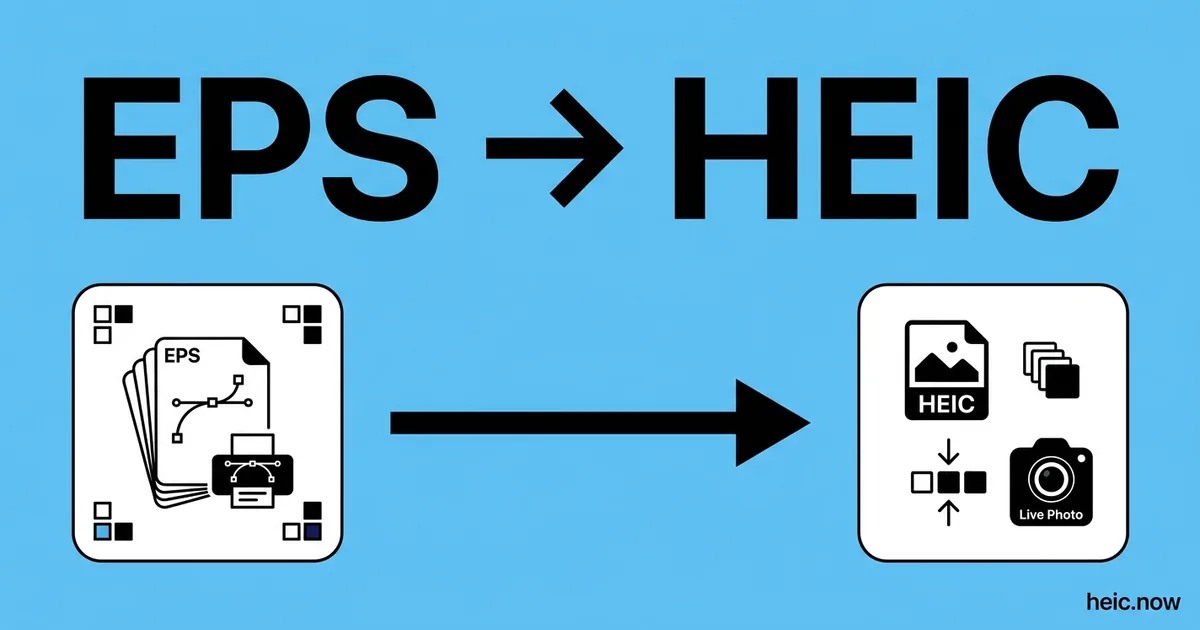
Convert EPS to HEIC Online
Rasterize EPS PostScript graphics to compact HEIC images.


Drop your EPS file here
or click to select
How EPS to HEIC works
Upload EPS
Drag & drop or click to select your EPS file.
Choose Options
Adjust quality, size, or other output settings if needed.
Download HEIC
Click Convert and your HEIC file downloads instantly.
About EPS to HEIC conversion
EPS (Encapsulated PostScript) is Adobe's 1992 vector container used for over three decades by print production, logo work, and stock vector marketplaces like Shutterstock, iStock, and Adobe Stock. The format wraps a self-contained PostScript program with a bounding box, optional preview, and font references. Designers receive EPS when downloading vector logos from brand guideline pages, and prepress operators still see EPS files in legacy InDesign packages. Converting EPS to HEIC rasterises the vector at a DPI you choose and stores the result in the most storage-efficient raster format Apple devices read natively.
The natural use case is asset-library previews on the Apple side of a studio. macOS Preview can open a single EPS, but iPhones, iPads, and Apple Photos cannot - so a brand team's EPS logo archive is invisible on exactly the devices where client reviews happen. Rendering each EPS to a HEIC preview produces files that Quick Look instantly, sync through iCloud, and weigh roughly half of equivalent JPG previews. Because HEIC also supports alpha transparency, a logo rasterised on a transparent background keeps it - something a JPG preview never could.
Rasterising EPS demands a PostScript interpreter - Ghostscript is the open-source standard, and Adobe Illustrator, Inkscape, and CorelDRAW all bundle one internally. The trap is fonts: if the EPS references Helvetica Neue 75 Bold and the rasteriser does not have it installed, glyphs substitute to Courier and the output looks broken - outline type in Illustrator (Type > Create Outlines) before converting. And know the limits of the destination: Microsoft Office dropped EPS import in 2017 and does not reliably accept HEIC on Windows either, so for Office paste targets convert the HEIC onward via HEIC to JPG.
Where HEIC comes from
EPS (Encapsulated PostScript) was defined by Adobe in 1987 as a self-contained subset of PostScript that could be embedded inside layout programs like QuarkXPress and PageMaker. Each EPS file carries a low-res TIFF or WMF preview plus the full vector instructions, so designers could place a logo on a page even if the workstation lacked a PostScript RIP. EPS dominated print pre-press from 1988 through the mid-2000s until PDF/X-1a (2001) gradually replaced it. Today EPS lingers in archive libraries, stock-vector marketplaces, and corporate brand portals — none of which an iPhone can open. Rasterizing to HEIC gives Apple-native previews with the transparency intact.
EPS vs HEIC at a glance
| EPS | HEIC | |
|---|---|---|
| Compression | PostScript text (gzippable) | HEVC intra-frame raster |
| Scalability | Infinite (vector PostScript) | Fixed pixel grid |
| Typical file size | 200 KB to 8 MB | 200 KB to 1 MB at chosen DPI |
| Best for | Print pre-press, logo masters, technical illustration | Apple device previews, iCloud brand folders |
| Software support | Illustrator, CorelDRAW, InDesign, Ghostscript | Apple ecosystem native; codecs elsewhere |
Real-world workflow — Brand manager makes an EPS logo viewable on the whole team's iPhones
- Receive a 1.4 MB EPS logo from the agency, locked with outlined fonts and Pantone spot inks.
- Drop the EPS into the EPS to HEIC converter and select a 300 DPI render at A4 size.
- Keep the transparent background — HEIC preserves the alpha channel that a JPG would flatten away.
- Save at quality 90 with sRGB embedded; the converter handles the Pantone-to-sRGB approximation.
- Share via the team's iCloud folder, where every Mac, iPhone, and iPad previews it without Illustrator.
Recommended conversion settings
| Use case | Settings |
|---|---|
| Logo preview with transparency | Quality 90, 150 DPI, keep alpha |
| Print proof for client sign-off | Quality 95, 300 DPI, embed sRGB ICC |
| iCloud brand folder master | Lossless HEVC, 300 DPI, keep alpha |
| Internal documentation | Quality 80, 96 DPI, strip metadata |
Where will your HEIC file open?
| Platform | EPS | HEIC |
|---|---|---|
| macOS Preview | ✓ | ✓ |
| Windows Photos | ✗ | ~ |
| Outlook (desktop) | ✗ | ✗ |
| Gmail | ✗ | ~ |
| iPhone Photos | ✗ | ✓ |
| Android gallery | ✗ | ~ |
| Photoshop | ✓ | ✓ |
| Chrome / Safari / Firefox | ✗ | ~ |
| Slack / Discord | ✗ | ✗ |
When to convert EPS to HEIC
Converting EPS to HEIC is a common workflow requirement wherever different software systems, platforms, and applications need to exchange image or document content. Whether you are preparing files for web publishing, print production, client delivery, or meeting upload requirements, having the right format is the starting point for every distribution workflow.
EPS files are tied to specific software ecosystems and tools. When that content needs to move into a context that requires HEIC - A different editing environment, a submission portal, a print service, or a sharing platform - A fast, reliable converter removes the format barrier without requiring software installation or technical knowledge.
heic.now processes your file securely in the cloud and returns a clean HEIC output that meets the format specification of standard applications and platforms. Files are processed privately and automatically deleted after 24 hours - Nothing is stored beyond what is needed to complete your conversion.
EPS to HEIC tips
- Set output DPI to 300 for print-quality previews or 150 for screen use - EPS is resolution-independent, so you choose the raster density at conversion time.
- Outline all type in Illustrator before EPS export to avoid font substitution disasters at the rasterisation step.
- HEIC keeps alpha - rasterise logos against a transparent background and the cutout survives, unlike a JPG render which always flattens.
- If the EPS has CMYK colours destined for offset printing, treat the HEIC strictly as a screen preview - keep the EPS master for the actual print run.
- Check the EPS bounding box first - some stock vectors have an oversized box with empty whitespace that wastes pixels in the raster output.
Related tools
Formats involved
EPS – Encapsulated PostScript
HEIC – High Efficiency Image Container
EPS to HEIC — frequently asked questions
Related guides & articles
Maybe you wanted something else?
- If the preview must open outside the Apple world → HEIC to JPG
- If the goal is a print sign-off container → HEIC to PDF
- If you need a lossless raster with alpha everywhere → HEIC to PNG
- If you only need smaller HEIC output → Compress HEIC
Related conversions
 JPG → HEIC
 PNG → HEIC
 WebP → HEIC
 PDF → HEIC
 RAW → HEIC
 TIFF → HEIC
 BMP → HEIC
 SVG → HEIC
 HEIC → HEIC
Embed this tool on your website