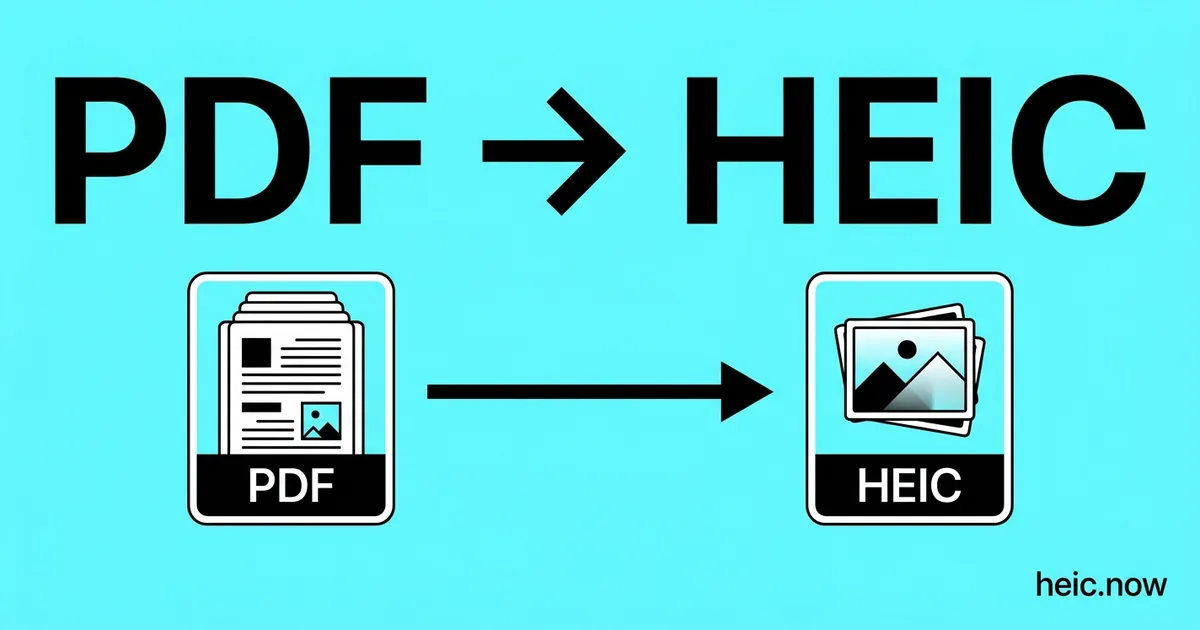
Convert PDF to HEIC Online
Extract pages from a PDF as compact HEIC images.


Drop your PDF file here
or click to select
How PDF to HEIC works
Upload PDF
Drag & drop or click to select your PDF file.
Choose Options
Adjust quality, size, or other output settings if needed.
Download HEIC
Click Convert and your HEIC file downloads instantly.
About PDF to HEIC conversion
Converting PDF pages to HEIC images renders each page as a compact, high-efficiency photo file - Ideal when you want document pages stored in an Apple Photos library, referenced in iOS apps, or archived at minimal size. Each page of the PDF is rendered as a separate HEIC at the specified resolution, and HEVC compression keeps the output roughly half the size of equivalent JPGs.
Resolution (DPI) is the most important setting. 72–96 DPI produces sharp images for on-screen viewing at 1:1 zoom. For pages that will be resized, zoomed, or printed, use 150–300 DPI. At 300 DPI, an A4 page becomes a 2480×3508 pixel image - Sufficient for most print scenarios. Higher DPI means better quality but larger file sizes.
PDF files can contain a mix of vector graphics, raster images, and text. When rendered to HEIC, vector elements and text are rasterised at the selected DPI. Text at 150 DPI or above is typically legible; at 72 DPI, small text may become blurry. One caution: the resulting HEIC pages open effortlessly on Apple devices, but Windows and most web platforms need JPG or PNG - Choose your target accordingly.
Where HEIC comes from
HEIF (High Efficiency Image File Format) was standardized by MPEG as ISO/IEC 23008-12 in 2015, and HEIC - the HEVC-coded variant - went mainstream when Apple made it the iPhone camera default in iOS 11 (2017). The format's video-codec ancestry makes it exceptionally good at exactly what rasterized PDF pages contain: large flat regions, sharp text edges, and embedded photographs, compressed 40-50% tighter than JPEG at the same visual quality. That efficiency is why page-per-image archives - lecture decks, contract snapshots, scanned records - shrink so dramatically on this conversion, though the output stays happiest inside the Apple ecosystem where HEIC support is native.
PDF vs HEIC at a glance
| HEIC | ||
|---|---|---|
| Compression | Container (mixed) | Lossy HEVC / H.265 |
| Multi-page | Yes (unlimited) | No (one HEIC per page) |
| Typical file size (10-page PDF) | 5-25 MB | 0.4-1.5 MB per page |
| Editability | Limited (needs Acrobat) | Opens like a photo in Preview / Photos |
| Searchable text | Yes (if OCR'd) | No |
| Best for | Documents, contracts | Compact page snapshots on Apple devices |
Real-world workflow — Student turns lecture-slide PDFs into a flickable Photos album
- Download the semester's lecture decks - nine PDFs totaling 96 pages and about 60 MB.
- Convert PDF to HEIC at 200 DPI on heic.now; each page lands around 350 KB, half what JPG pages would take.
- Import the page images into a dedicated Apple Photos album on the iPad.
- Revise on the train with offline, instant-loading pages - no PDF reader, no pinch-zoom lag.
- Before the study group, convert the key pages via HEIC to JPG so Android classmates can open them too.
Recommended conversion settings
| Use case | Settings |
|---|---|
| Reading on iPhone / iPad | 150 DPI, Q85, sRGB |
| Archival page snapshots | 300 DPI, Q90, keep page numbering in filenames |
| Slide decks with gradients | 200 DPI, Q85 - 10-bit HEVC avoids banding |
| Scanned documents with small text | 300 DPI, Q90 |
| OCR feed (Tesseract input) | 300 DPI, Q95, grayscale |
Where will your HEIC file open?
| Platform | HEIC | |
|---|---|---|
| macOS Preview | ✓ | ✓ |
| Windows Photos | ~ | ~ |
| Gmail (preview) | ✓ | ~ |
| Outlook desktop | ✓ | ~ |
| iOS Files | ✓ | ✓ |
| Android (Drive) | ✓ | ~ |
| Adobe Photoshop | ✓ | ✓ |
| Chrome / Safari / Firefox | ✓ | ~ |
| Slack / Discord | ✓ | ✗ |
When to convert PDF to HEIC
Converting PDF pages to HEIC renders each page as a compact image - The same visual snapshot a PDF-to-JPG conversion produces, at roughly half the file size. This suits Apple-device workflows: page images land in Photos or Files, display instantly in Quick Look, and sync to iCloud without the bulk of full-resolution JPG or PNG renders.
Students and researchers who photograph or collect documents on iPad use PDF-to-HEIC to turn reading material into swipeable page images for annotation apps and quick reference. Long documents benefit most, since HEIC keeps a 100-page render small enough to store and sync casually.
Remember that a page image is no longer a document: text cannot be selected or searched. Keep the source PDF for editing and archiving, and use the HEIC page images as the lightweight viewing copies. If pages need to be shared outside the Apple ecosystem, PDF to JPG is the more compatible choice.
PDF to HEIC tips
- Use 150 DPI for screen-use images and 300 DPI for anything that will be printed or zoomed.
- For multi-page PDFs, each page is extracted as a separate numbered HEIC file.
- If the PDF contains mostly text, increase DPI to 200–300 for legible output - HEVC handles rendered text cleanly at high resolution.
- If the extracted pages need to go to a website or non-Apple recipients, run them through the HEIC to JPG converter afterwards - HEIC won't display in browsers or most upload forms.
Related tools
Formats involved
PDF – Portable Document Format
HEIC – High Efficiency Image Container
PDF to HEIC — frequently asked questions
Related guides & articles
Maybe you wanted something else?
- If recipients aren't on Apple devices → HEIC to JPG
- If you want to re-bundle pages into a document → HEIC back to PDF
- If the pages are headed for a website → HEIC to WebP
- If the output files are still too large → Compress HEIC
Related conversions
 JPG → HEIC
 PNG → HEIC
 WebP → HEIC
 RAW → HEIC
 TIFF → HEIC
 BMP → HEIC
 SVG → HEIC
 GIF → HEIC
 HEIC → HEIC
Embed this tool on your website