
How to Convert iPhone HEIC Photos and Fix Quality Issues on Windows
Learn how to convert iPhone HEIC photos to JPG or PNG on Windows and fix the softness that often follows. No software installs required.
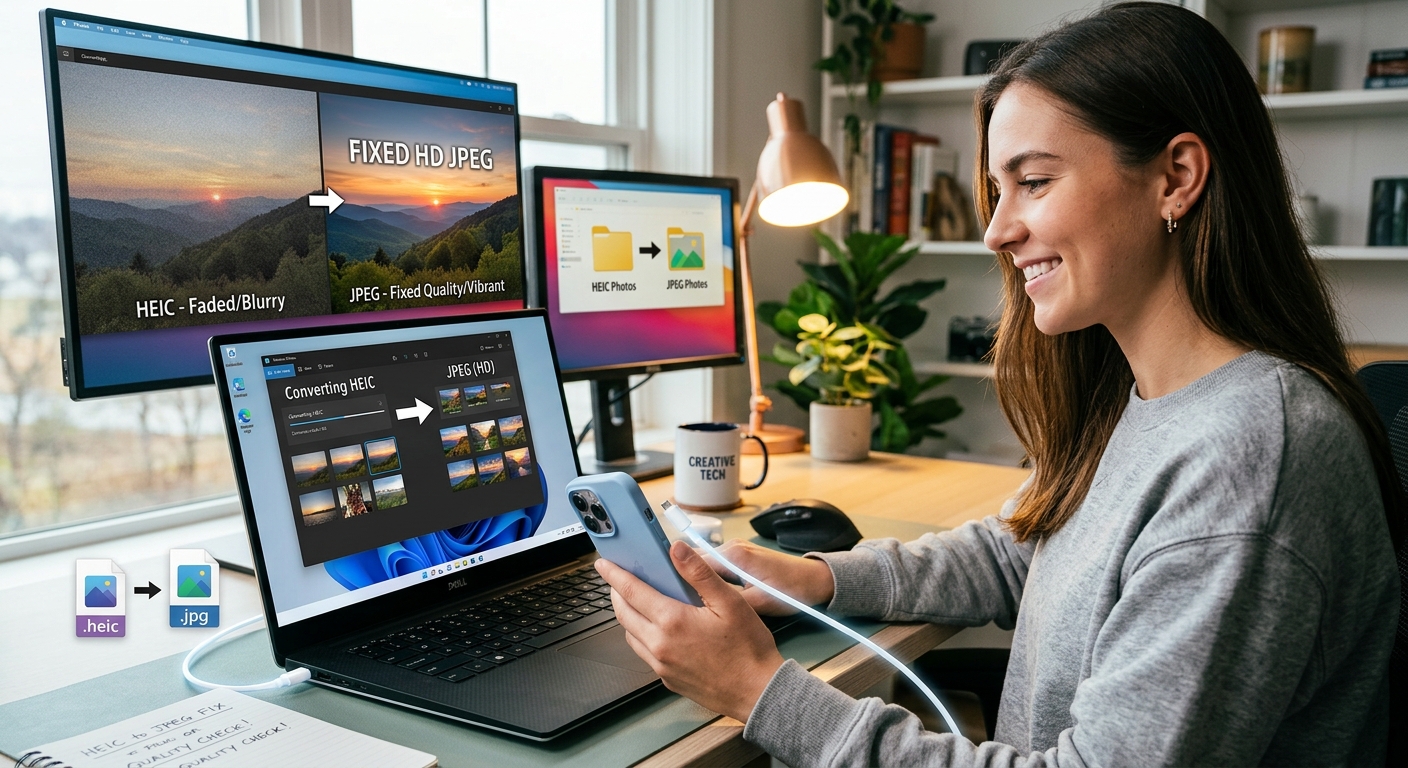
You plug your iPhone into your PC, copy over some photos, and then nothing opens. Windows Photo Viewer throws an error. Paint ignores the files entirely. The shots look perfect on your phone but on your computer they might as well not exist. If you have been there, you already know the HEIC problem. This guide walks you through exactly why it happens, how to convert those files into something Windows can actually use, and what to do when the converted photos come out looking a little flat compared to the originals.
The Fix at a Glance
- HEIC is Apple's default photo format and Windows cannot open it without extra software or a conversion step.
- You can convert HEIC files to JPG or PNG in a browser in under a minute, no installation required.
- If converted photos look softer or flat, running them through an AI image enhancer before printing or uploading restores sharpness.
What HEIC Actually Is and Why Your iPhone Uses It
HEIC stands for High Efficiency Image Container. It is the file format Apple adopted starting with iOS 11 in 2017. The format is built on the HEIF standard, which was developed by the Moving Picture Experts Group. Understanding how this image format was designed helps explain the trade-off Apple made: HEIC stores photos at roughly half the file size of a JPG while keeping comparable visual quality. More photos fit on your phone without burning through storage.
HEIC also handles transparency, wide color gamuts, and burst photo sequences in ways that JPG simply cannot. The problem is that HEIC was built with Apple devices in mind. Outside of that ecosystem, compatibility has lagged for years, and Windows has never treated it as a standard format.
Why Windows Refuses to Open HEIC Files
Windows 10 and Windows 11 do not include HEIC support out of the box. Microsoft offers an optional codec called HEIF Image Extensions through the Microsoft Store, but it costs a small fee and requires a manual installation step. Many users never find it. Even those who do sometimes run into compatibility gaps depending on their Windows version or the specific app they are using to view photos.
The result is the error you have already seen. The file transfers from your iPhone without any problem, it sits in your Downloads or Pictures folder, and then nothing in Windows can display it. File Explorer might show a grey thumbnail or no thumbnail at all. The file is not corrupted. Your PC simply does not know how to read it without extra help.
Converting HEIC Files to JPG or PNG in the Browser
The most practical fix for most people is a browser-based converter. No software installation, no driver downloads, no settings to change on your phone. Here is how the process works:
- Open your browser and go to a HEIC conversion site.
- Upload your HEIC file by dragging it onto the page or clicking the upload button. Most converters accept multiple files at once.
- Select your output format. JPG works best for photos you plan to share, post online, or email. PNG is better if you need a lossless copy or the image has transparent areas.
- Run the conversion and wait a few seconds for the process to finish.
- Download the converted file. It saves to your Downloads folder and opens in any program on Windows without errors.
The whole process takes under a minute for a single photo. Batch conversions for larger groups of files take a bit longer but still run entirely in the browser without installing anything on your machine.
JPG vs PNG: Choosing the Right Format After Conversion
JPG uses lossy compression, which means it discards some image data to reduce file size. The loss is barely visible at high quality settings, and the resulting files stay small enough to attach to emails or upload quickly. PNG uses lossless compression and retains every pixel exactly as it was. PNG files are noticeably larger but never degrade with repeated saves.
For most photos coming off an iPhone, JPG is the practical choice. The file stays compact, colors look accurate, and every platform accepts it. Reserve PNG for screenshots, graphics with text, logos, or images you plan to edit further before saving a final version. Editing a JPG repeatedly re-compresses it each time, slowly degrading quality. PNG avoids that entirely.
Why Converted Photos Sometimes Look Softer Than the Originals
This is the follow-up frustration that catches people by surprise. You convert the photo, open the JPG, and something feels slightly off. The image looks a little softer or flatter. Colors seem less punchy. It does not look broken, just not quite as crisp as it did on your iPhone screen.
A few things cause this. First, HEIC files often carry extra color profile information that does not always transfer perfectly during conversion. Second, JPG compression is lossy by nature. Even at high quality settings, some fine detail gets smoothed out in the encoding process. Third, iPhone screens use very saturated, high-brightness displays that make photos look sharper and more vivid than they will on a typical Windows monitor. The photo itself may not have degraded at all. You might simply be seeing it on a less optimized display for the first time.
That said, genuine compression artifacts do appear, especially in photos with fine textures like hair, fabric, or foliage. If sharpness matters to you, there is a no-install fix for that.
Restoring Crispness Before You Print or Upload
After conversion, if a photo looks slightly soft, running it through an AI image enhancer in the browser can bring back much of that lost crispness. These tools use machine learning to analyze texture patterns and intelligently restore detail that compression stripped away. You do not need to understand how they work under the hood. You upload the JPG, the tool processes it, and you download a version with noticeably better edge definition and clarity.
This step is particularly useful before printing. A photo that looks acceptable at screen resolution can look noticeably blurry when printed at 300 DPI on photo paper. A sharpening pass before you send the file to print is a small step that makes a real difference in the physical output. It takes less than a minute and requires nothing installed on your computer.
Changing Your iPhone to Avoid the Problem Entirely
If you regularly transfer photos to Windows and want to skip the conversion step altogether, you can change your iPhone's camera format directly. Open the Settings app, tap Camera, then tap Formats. You will see two options: High Efficiency and Most Compatible. Switching to Most Compatible tells the camera to save photos as JPG by default. The trade-off is larger file sizes on your phone, but every photo you take will open directly on Windows without any extra work.
There is also a separate transfer option worth knowing about. Under Settings, then Photos, you can set the iPhone to automatically convert photos to JPG when transferring to a PC. The option appears as Automatic under the Transfer to Mac or PC section. This lets the phone keep shooting in HEIC for storage efficiency while sending JPG files whenever you plug it into Windows. You get the best of both situations without permanently giving up either.
Your iPhone Photos Deserve to Open on Every Device
HEIC makes perfect sense on an iPhone. It saves storage without sacrificing the quality you see on Apple's display. On Windows, though, it has been a frustrating wall for anyone who just wants to open a photo they took. The path through that wall is short: a browser converter gets you from HEIC to JPG or PNG in under a minute, no installation required. A sharpening pass afterward handles the softness that sometimes follows. And if you would rather skip the whole process going forward, a single setting change on your iPhone makes every future transfer seamless.
None of these steps require paying for software, learning anything technical, or compromising on the quality of your photos. You just want your pictures to open. Now they will.